
New: Find Anything in Your Organizer Dashboard Faster
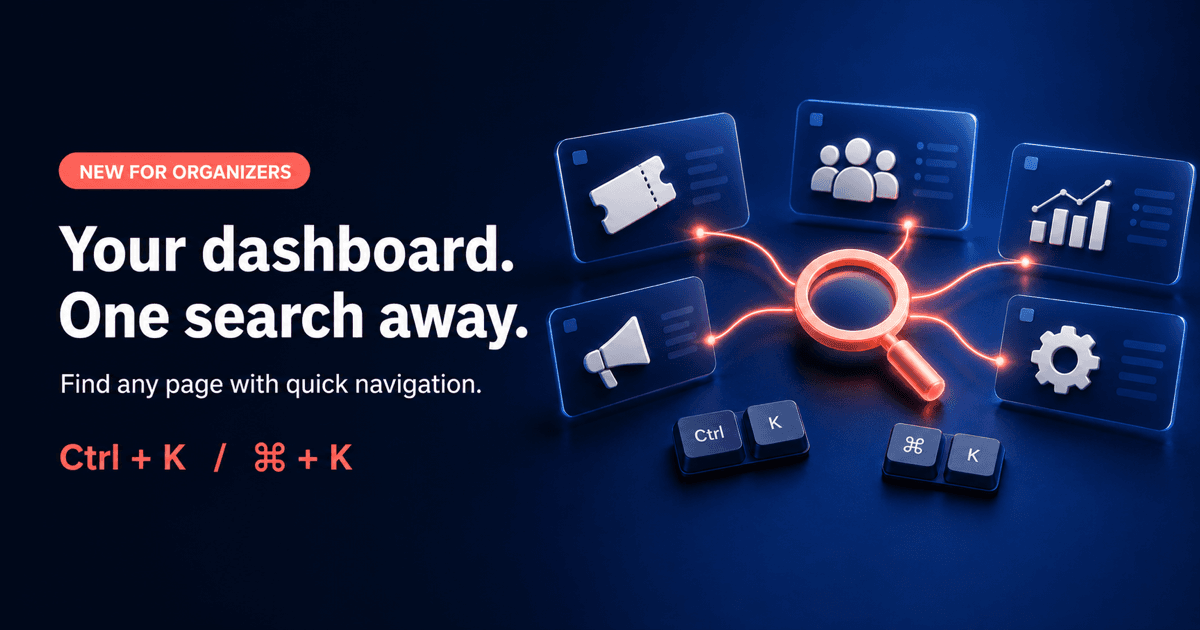
You know where you need to go. Finding it should not become another task.
The AllEvents Organizer Dashboard now has quick navigation. From any page in your dashboard, open the search bar or press Ctrl + K on Windows or Command + K on Mac. Type the destination you need, select it, and you are there.
No menu treasure hunt required.
One dashboard-wide search now takes you from the page you are on to the dashboard destination you need next.
One search from wherever you are
Event management rarely happens one task at a time. You check ticket sales, switch to attendees, update event details, return to marketing, and then remember the setting you need lives somewhere else.
Previously, each switch meant finding the right menu and working your way back through the dashboard. Quick navigation removes those extra steps.
Use it from any dashboard page to search for the place you need next. Your current page does not matter. The shortcut follows you around the organizer dashboard.
Open. Search. Go.
The whole feature takes three actions:
- Open searchUse the search bar, or press Ctrl + K on Windows or Command + K on Mac.
- Type your destinationSearch for the dashboard page or section you want to open.
- Go thereChoose the result and continue your work.
That is it. No new workflow to learn. No setup. No five-minute tutorial for a feature designed to save you five minutes.
Built for the way organizers actually work
The useful part is not the search bar itself. It is staying in motion.
You can move from ticketing to attendees without retracing your route. Jump from marketing to analytics while a campaign is still on your mind. Head to event settings when someone messages you about a detail that needs changing.
The dashboard may hold plenty of event marketing tools on AllEvents. Reaching the one you need now takes a single route.
Quick navigation is available now
Open your AllEvents Organizer Dashboard and press Ctrl + K or Command + K. Search for where you need to go next, then get back to the event you are building.
Your mouse can take five.
Go straight to the next task
Open your organizer dashboard, use quick navigation, and skip the menu treasure hunt.
Open your organizer dashboardFrequently asked questions
What is quick navigation in the AllEvents Organizer Dashboard?
Quick navigation is a dashboard-wide search that helps organizers find and open dashboard pages from wherever they are currently working.
What keyboard shortcut opens dashboard search?
Press Ctrl + K on Windows or Command + K on Mac. You can also open quick navigation through the dashboard search bar.
Where can I use quick navigation?
Quick navigation is available across the AllEvents Organizer Dashboard, so you can search for another dashboard destination without returning to the dashboard home page first.

Written by
Paras Makhija
Making the world happening place to live by curating the best experiences.
View all posts